We can check your plugins and stuff
Showing posts with label Firefox. Show all posts

Thursday, March 14, 2013

Enable best settings for Photographs in Firefox

Friends you all know I am great fan of the Mozilla Web browser Firefox. Along with tech and Linux Digital Photography is also something that makes my heart flutter :) Here is a quick guide to enable optimal setting in your Firefox for displaying the best looking photos.

Go to address bar type about:config  and press enter.. now in the search bar type gfx.color
press enter. You should see the following entries with there default values.

gfx.color_management.enablev4   ----- false

gfx.color_management.mode    ------- 2

gfx.color_management.rendering_intent ------ 0

gfx.color_management.display_profile ----- blank

Now before we go on tweaking the settings make sure that you are set to use Color management at the OS level. I use Fedora Linux with KDE 4.10.x which has system wide color management enable.
For Windows look under Control Panel > Color management. Make sure the OS load the correct ICC profile for the monitor that you have.

You can also use the model specific tool for this.. for e.g my Samsung SyncMaster came with software to load the correct monitor profile and color setting tools. Check you vendor web site for updates or patches for your model. Now once we have a color profiled monitor and OS ...

Toggle gfx.color_management.enablev4   --- True.

Possible values and their effects

False    (default) Version 4 is not enabled
True    Version 4 is enabled

gfx.color_management.rendering_intent   change to    -1


Possible values and their effects


-1   
Honor the rendering intent specified in the image file.


0    
Perceptual 
(Default)


1    
Relative colorimetric

2    Saturation

3   Absolute colorimetric


gfx.color_management.mode  change to


Possible values and their effects

0   Disable color management.
1   Enable color management for rendered graphics.
2  Enable color management for tagged graphics only. (Default)

"Value 0" equals "Color management disabled" — This means different things depending on the Operating System:

OS-X, Windows: RGB 'numbers' are passed straight to the monitor unchanged. 

"Value 1" equals "Full color management" — This means everything tagged is Converted to Monitor RGB, and everything untagged is Assigned sRGB and then Converted to Monitor RGB.

"Value 2" equals "Color management applied only to tagged images" — This means Tagged files are Converted to Monitor RGB and untagged RGB is sent straight to the monitor unchanged.

That's all it that simple to have better Photographs in Firefox, restart the web browser. If you find all this manual editing a bit of hassle use the "Color Management" add-on to do the same. Have fun :) 


Wednesday, February 13, 2013

Boost your safety online

Hello today we will look at a few quick tweaks to boost the level of security while surfing online using the awesome Mozilla Firefox web browser.

Launce FireFox  Go to Preferences > Advanced > Encryption

Make sure Use SSL 3.0 and Use TLS 1.0 are both enabled (tick box checked)


What is being done - we are using setting SSL to use a higher grade encryption.


Now type about:config in the address bar. Press enter.
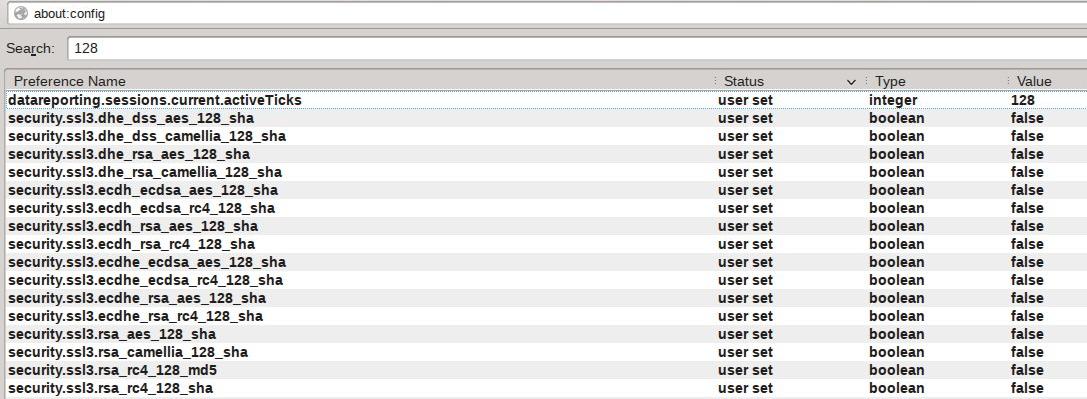
Type 128 in the search bar. Press enter. Now toggle the following entries to "False".


What is being done - we are disabling the low bit rate ssl to force use a higher grade encryption.


Now type 256 in the search bar. Press enter. Now toggle the following entries to "True" if they are not already set to "True".


What is being done - we are using setting SSL to use a higher grade encryption.


Type 'ssl.' That's ssl and a '.' in the search bar. Press enter. Now toggle the following entries to "True".

What does these setting do -

security.ssl.enable_false_start - "True" will help speed up the ssl lookup.
If this setting breaks the site that you use, set to "false"

security.ssl.require_safe_negotiation - "True" make sure that any possible Man-in-the-middle attacks are stopped.
If this setting breaks the site that you use, set to "false" 

security.ssl.treat_unsafe_negotiation_as_broken - "True" make sure that any possible Man-in-the-middle attacks are stopped.
If this setting breaks the site that you use, set to "false" 

Type 'geo.enabled' in the search bar. Press enter. Now toggle the following entries to "False".

What does the setting do - It disables the geographical tracking that is enabled by default. Improves privacy while web surfing.

With these simple tweaks you can enable a much safer web surfing experience. Sometimes few web sites may not work properly when using higher grade encryption (which is a bad design fault at there end - really) . In that case just temporally enable one of the 128 bit setting and reloaded the page to make them work (disable normally). Happy safer web surfing.