We can check your plugins and stuff
Showing posts with label faster web browsing. Show all posts

Thursday, March 14, 2013

Enable best settings for Photographs in Firefox

Friends you all know I am great fan of the Mozilla Web browser Firefox. Along with tech and Linux Digital Photography is also something that makes my heart flutter :) Here is a quick guide to enable optimal setting in your Firefox for displaying the best looking photos.

Go to address bar type about:config  and press enter.. now in the search bar type gfx.color
press enter. You should see the following entries with there default values.

gfx.color_management.enablev4   ----- false

gfx.color_management.mode    ------- 2

gfx.color_management.rendering_intent ------ 0

gfx.color_management.display_profile ----- blank

Now before we go on tweaking the settings make sure that you are set to use Color management at the OS level. I use Fedora Linux with KDE 4.10.x which has system wide color management enable.
For Windows look under Control Panel > Color management. Make sure the OS load the correct ICC profile for the monitor that you have.

You can also use the model specific tool for this.. for e.g my Samsung SyncMaster came with software to load the correct monitor profile and color setting tools. Check you vendor web site for updates or patches for your model. Now once we have a color profiled monitor and OS ...

Toggle gfx.color_management.enablev4   --- True.

Possible values and their effects

False    (default) Version 4 is not enabled
True    Version 4 is enabled

gfx.color_management.rendering_intent   change to    -1


Possible values and their effects


-1   
Honor the rendering intent specified in the image file.


0    
Perceptual 
(Default)


1    
Relative colorimetric

2    Saturation

3   Absolute colorimetric


gfx.color_management.mode  change to


Possible values and their effects

0   Disable color management.
1   Enable color management for rendered graphics.
2  Enable color management for tagged graphics only. (Default)

"Value 0" equals "Color management disabled" — This means different things depending on the Operating System:

OS-X, Windows: RGB 'numbers' are passed straight to the monitor unchanged. 

"Value 1" equals "Full color management" — This means everything tagged is Converted to Monitor RGB, and everything untagged is Assigned sRGB and then Converted to Monitor RGB.

"Value 2" equals "Color management applied only to tagged images" — This means Tagged files are Converted to Monitor RGB and untagged RGB is sent straight to the monitor unchanged.

That's all it that simple to have better Photographs in Firefox, restart the web browser. If you find all this manual editing a bit of hassle use the "Color Management" add-on to do the same. Have fun :) 


Wednesday, February 13, 2013

Boost your safety online

Hello today we will look at a few quick tweaks to boost the level of security while surfing online using the awesome Mozilla Firefox web browser.

Launce FireFox  Go to Preferences > Advanced > Encryption

Make sure Use SSL 3.0 and Use TLS 1.0 are both enabled (tick box checked)


What is being done - we are using setting SSL to use a higher grade encryption.


Now type about:config in the address bar. Press enter.
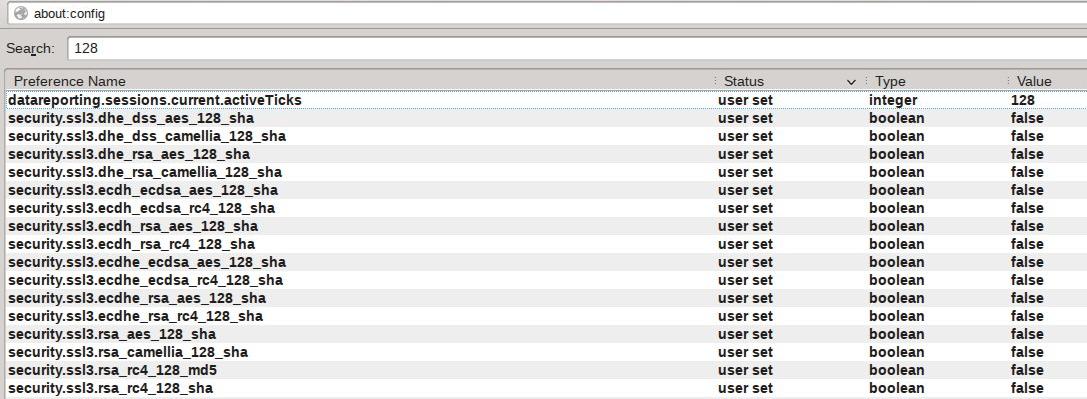
Type 128 in the search bar. Press enter. Now toggle the following entries to "False".


What is being done - we are disabling the low bit rate ssl to force use a higher grade encryption.


Now type 256 in the search bar. Press enter. Now toggle the following entries to "True" if they are not already set to "True".


What is being done - we are using setting SSL to use a higher grade encryption.


Type 'ssl.' That's ssl and a '.' in the search bar. Press enter. Now toggle the following entries to "True".

What does these setting do -

security.ssl.enable_false_start - "True" will help speed up the ssl lookup.
If this setting breaks the site that you use, set to "false"

security.ssl.require_safe_negotiation - "True" make sure that any possible Man-in-the-middle attacks are stopped.
If this setting breaks the site that you use, set to "false" 

security.ssl.treat_unsafe_negotiation_as_broken - "True" make sure that any possible Man-in-the-middle attacks are stopped.
If this setting breaks the site that you use, set to "false" 

Type 'geo.enabled' in the search bar. Press enter. Now toggle the following entries to "False".

What does the setting do - It disables the geographical tracking that is enabled by default. Improves privacy while web surfing.

With these simple tweaks you can enable a much safer web surfing experience. Sometimes few web sites may not work properly when using higher grade encryption (which is a bad design fault at there end - really) . In that case just temporally enable one of the 128 bit setting and reloaded the page to make them work (disable normally). Happy safer web surfing.

Friday, January 25, 2013

How to install better drivers for Intel LAN card in Fedora 18

Well well me hearties Fedora 18 is out and so sooner or later will be the so called tweaking guides. Toady we will look at how to get the latest and greatest Intel LAN e1000e driver installed on to your Fedora 18 system.

Under a root Konsole type the following :

 dmesg | grep e1000e

you should see something like [    9.400870] e1000e: Intel(R) PRO/1000 Network Driver - 2.1


Visit http://sourceforge.net/projects/e1000/files/e1000e%20stable/2.2.14/e1000e-2.2.14.tar.gz/download

and download the latest driver. This should give you a file e1000e-2.2.14.tar.gz

now under the folder where the file has been downloaded issue the following command.

rpmbuild -tb ./e1000e-2.2.14.tar.gz

If you get any dependency errors install the missing files .. if all is well you should get the latest e1000e driver rpm

now issue the following rpm -Uvh /root/rpmbuild/RPMS/x86_64/e1000e-2.2.14-1.x86_64.rpm


Preparing...                          ################################# [100%]

reboot the system 

...

dmesg | grep e100
[    9.400870] e1000e: Intel(R) PRO/1000 Network Driver - 2.2.14-NAPI
[    9.400873] e1000e: Copyright(c) 1999 - 2012 Intel Corporation.

There you have the latest and greatest Intel e1000e LAN driver installed :) :) 


--- Important Update ---

I have just noticed that if you upgrade the kernel ... the system reverts to old 2.1x series of e1000e network driver. As the driver is compiled against the current kernel, here are the instruction to updated them to the current version.  After you have updated the kernel and rebooted once..

# service network stop
# rmmod e1000e
# rpmbuild -tb ./e1000e-2.2.14.tar.gz
# rpm -Uvh /root/rpmbuild/RPMS/x86_64/e1000e-2.2.14-1.x86_64.rpm --force
# modprobe e1000e
# service network restart

Check to make sure ---
dmesg | grep e1000e


[13226.725837] e1000e: Intel(R) PRO/1000 Network Driver - 2.2.14-NAPI
[13226.725842] e1000e: Copyright(c) 1999 - 2012 Intel Corporation.
[13226.725889] e1000e 0000:00:19.0: setting latency timer to 64
[13226.725986] e1000e 0000:00:19.0: Interrupt Throttling Rate (ints/sec) set to dynamic conservative mode
[13226.753249] e1000e 0000:00:19.0: irq 46 for MSI/MSI-X
[13227.015084] e1000e 0000:00:19.0 eth0: (PCI Express:2.5GT/s:Width x1) 00:1c:c0:0f:ae:40
[13227.015089] e1000e 0000:00:19.0 eth0: Intel(R) PRO/1000 Network Connection

Saturday, February 12, 2011

Quick and easy way to block ad's and spam in Fedora Linux

How many time we all wished that the web site or web page you where visiting would load up faster. Now a days no matter what site you visit blogs, news, forums, portals or generic web sites. They all are littered with all sorts of java scripts,flash animations, java applets, active-x controls and cross feeds via dynamic html/scripting to one or more advertising servers. If you have ever noticed the bottom of the web browser while opening any standard site such as Facebook, Orkut, BBC news etc, you will see the web browser trying to connect to many different sites and many many different sub domains.

Most of big sites pull content from many different sites and sub domains. At times the main site that you are trying to reach would not even load completely. All because of a slow ad server or sub domain from where it is pulling up the info or advertisement. To get out of this rut we have to refresh the page many times in hopes of the entire content being loaded. There are a few ways to get around this, today we will look at one such very easy way. This method has the added advantage that it blocks out known bad/evil domains that server Malware, Spyware and Spam. This also provides an extra layer of defense against all those hackers and script kiddies so eager to steal your data, cookies, web logins and your peace of mind in general.

Under most *nix like system the web address is first check against the HOST file. If a match is not found a DNS lookup is done for the IP address as the web browsers works on IP internally over HTTP/FTP(s). What we will do is use the host file to block unwanted domains and IP addresses.... Aha you say old trick what's so great about it.. well for starters we will use some bash script magic to automate this for us.  The list(s) comes from very well know sources like WOT/mvps.... so lets get to it. You will need the following tools installed (these are pre installed in Fedora) wget unzip dos2unix grep. If for some reason your system does not have any of these do a quick 'yum install' to install the missing tool. Copy and paste the code below and save as hostup.sh

****************
!/bin/bash
# uphosts - Hosts File Updater
# README:
#original script found at http://guide.debianizzati.org/index.php/UpHosts
#Bad hosts are blocked putting them in the hosts file as 0.0.0.0
# To add other sources script must be manually modified
# Permanent entries must be added to the original file
# THIS SCRIPT HAS NO WARRANTY !
# Thanks to:
# http://ubuntuedintorni.wordpress.com/2009/06/29/di-script-dns-e-file-host/
# http://hostsfile.mine.nu/downloads/updatehosts.sh.txt
# 20101216 Paolo
# has been modified to work under Fedora/RHE /CentOS
#-----------------------------------------------------------------------

HOSTSPATH="/tmp/hosts-`date +%s`"               # Temp directory
HOSTSFILE="/etc/hosts"                          # Hosts file
ORIGFILE="$HOSTSFILE.original"                  # Backup file

CONFDIR="$(dirname $(readlink -f $0))"  # Parent directory of the script
BLACKLIST="$CONFDIR/uphosts-blacklist"  # Local Blacklist
WHITELIST="$CONFDIR/uphosts-whitelist"  # Whitelist

PROXYUSER="" #PROXYUSER="--proxy-user=user.name"
PROXYPASS="" #PROXYPASS="--proxy-password='password"

DAYS="2" # Update frequency
#-----------------------------------------------------------------------
# Checks for root privileges
if [ "$(whoami)" != 'root' ] ; then
        echo "You need to be root to execute uphosts. Exiting!"
        exit 1
fi

# Checks required packages
ABORT=0
builtin type -P wget     &>/dev/null || { echo -n "wget is missing."; ABORT=1; }
builtin type -P unzip    &>/dev/null || { echo -n "unzip is missing."; ABORT=1; }
builtin type -P dos2unix  &>/dev/null || { echo -n "dos2unix is missing."; ABORT=1; }
builtin type -P grep     &>/dev/null || { echo -n "grep is missing."; ABORT=1; }

if [ $ABORT != 0 ] ; then
        echo " Exiting!"
        exit 2
fi

# Limits updates if uphosts is run often (i.e. at every if-up)
# If there is no original hosts file this is the first run on a fresh system, and update runs anyway
if [ -f "$ORIGFILE" ] && [ `find $HOSTSFILE -mtime -$DAYS` ] ; then
        echo "$HOSTSFILE is less than $DAYS days old. Exiting!"
        exit 3
fi
************
This script need Root to execute. Make the script executable by doing a #chmod +x ./hostup.sh
now run the script #./hostup.sh [You should see something like this]
Retrieving hphosts from http://support.it-mate.co.uk/downloads ... OK
Retrieving hphosts-partial from http://www.hosts-file.net ... OK
Retrieving mvps from http://www.mvps.org/winhelp2002 ... OK
Merging lists ... OK
Writing hosts file /etc/hosts ... OK
Update process complete - 134929 hosts blocked!

That's it and we are done. Enjoy a safer and fasted web experience.

P.S - In a perfect world I should have unlimited bandwidth and money ;) .... But alas though this method is great and saves a lot of pain and manual effort. It sometimes does block some sites and forums from loading properly.. if that is the case just open the hosts file in vi
#vi /etc/hosts and add a "#" to comment the site to unblock it. Do not forget to save the hosts file. Refresh the page in your browser.